
You published a blog post. You submitted it in Google Search Console. But when you check the Pages report, it says: “Crawled — currently not indexed.”
Frustrating, right?
This is one of the most common indexing issues website owners face in 2026 and the good news is, it is fixable. At Easy Client Hub, we have dealt with this issue on multiple client websites and on our own projects. In this guide, we will explain exactly what this status means, why it happens, and how to fix it step by step.
What Does “Crawled — Currently Not Indexed” Mean?
When Google crawls your page, it means Googlebot visited your page and read the content. But crawling does not automatically mean indexing.
Indexing means Google has added your page to its database and your page can now appear in search results.
“Crawled — currently not indexed” means Google visited your page, reviewed it, and made a deliberate decision not to add it to the index. Your page will not appear in any Google search results until this is resolved.
This is not a technical bug. It is a quality judgment from Google.
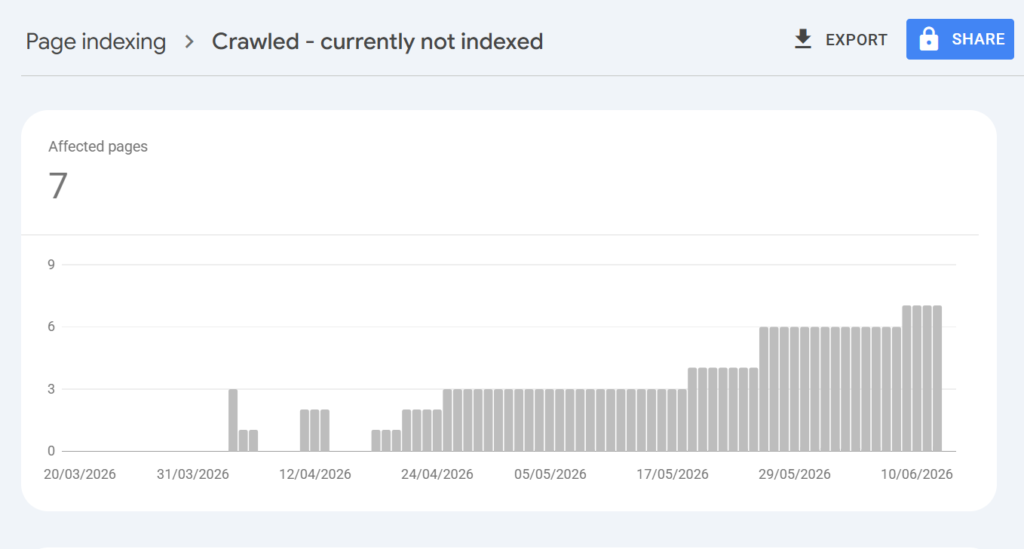
This is what “Crawled currently not indexed” looks like in Google Search Console affected pages increasing over time is a clear sign of a site-wide quality issue.
Crawled vs Discovered — Not Indexed: What Is the Difference?
Many people confuse these two statuses. Here is a simple breakdown:
| Google Search Console Status | What It Means | Best Fix |
| Crawled – Currently Not Indexed | Google crawled the page but chose not to index it. | Improve content quality, add internal links, then request indexing. |
| Discovered – Currently Not Indexed | Google found the URL but hasn’t crawled it yet. | Improve site structure, update your sitemap, and wait for Google to crawl it. |
| Duplicate Without User-Selected Canonical | Google found similar pages and selected a different canonical version. | Fix your canonical tags or merge duplicate content. |
| Excluded by ‘noindex’ Tag | The page is intentionally blocked from indexing. | Remove the noindex tag if you want the page indexed. |
| Soft 404 | The page appears to have little or no useful content. | Expand the content or redirect the page if it is no longer needed. |
The fix for each is different. This guide focuses on the Crawled — currently not indexed status.
How to Find These Pages in Google Search Console
Before fixing anything, you need to see which pages are affected.
1: Open Google Search Console and go to Indexing > Pages.
2: Scroll down to the “Why pages aren’t indexed” section.
3: Click on “Crawled — currently not indexed” row.
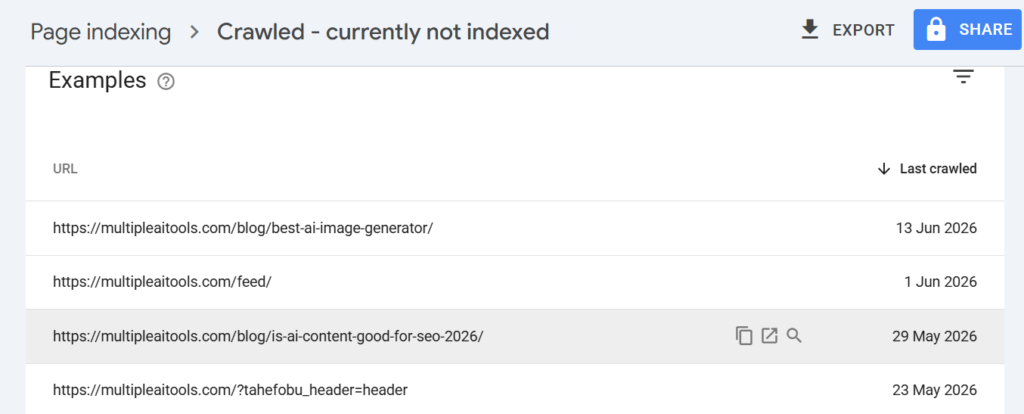
The affected URLs list in GSC — Google crawled these pages from one of our live projects but chose not to index them.
You will see a list of all affected URLs with their last crawled date. Go through this list carefully. You can safely ignore URLs like /feed/ or /?s=query Google normally skips these. Focus only on your important blog posts and pages. Focus only on your important blog posts and pages.
6 Main Reasons Why Google Is Not Indexing Your Page
1. Thin or Low-Quality Content
This is the number one reason in 2026. Google has become very selective about which pages it indexes. If your content is too short, generic, or just repeats what hundreds of other pages already say Google will skip it.
Pages under 300-500 words, AI-generated content that was not edited, or posts that do not add any new value are at high risk of this status.
Fix: Rewrite the content. Make it longer, more detailed, and add original insights or experience that competitors do not have.
2. Duplicate or Near-Duplicate Content
If two pages on your website cover the same topic with similar content, Google will only index one of them and ignore the other. This also applies to thin category pages, tag pages, and paginated URLs.
Fix: Use canonical tags to tell Google which version is the main one. Or merge the two pages into one comprehensive post.
3. Poor Internal Linking (Orphan Pages)
If no other page on your website links to the new post, Google treats it as low priority. A page that only exists in your sitemap with zero internal links is what SEOs call an “orphan page.”
Fix: Add at least 2-3 internal links to the new post from your existing, already-indexed pages. Link from pages that are topically related.
4. Weak Site-Wide Authority
New websites with limited authority and few quality backlinks often experience this issue because Google has less confidence in the site’s overall quality.
Fix: Build quality backlinks from real websites guest posts, directory listings, and niche-relevant platforms. This takes time but it is the most important long-term fix. If you need help with this, check out our professional backlink building service designed specifically for growing websites.
5. Unedited AI-Generated Content
Google does not penalize content simply because AI helped create it. However, pages that are generic, inaccurate, or provide little original value are less likely to be indexed. Whether a draft is written with AI or by a human, quality, originality, and usefulness are what matter most.
Fix: Always edit AI-generated drafts. Add your own experience, real screenshots, examples, and original insights. Google rewards E-E-A-T — Experience, Expertise, Authoritativeness, and Trustworthiness.
6. No Value Added Over Existing Results
If your page covers a topic that is already well-covered by high-authority websites and your post does not offer anything new Google has no reason to index it.
Fix: Find a unique angle. Add a real case study, original data, or a specific fix that competitors have not covered. The goal is “information gain” your page should teach the reader something they cannot easily find elsewhere.
How to Fix “Crawled — Currently Not Indexed” Step by Step
Step 1: Inspect the URL
Open Google Search Console and paste the affected URL into the URL Inspection tool at the top.
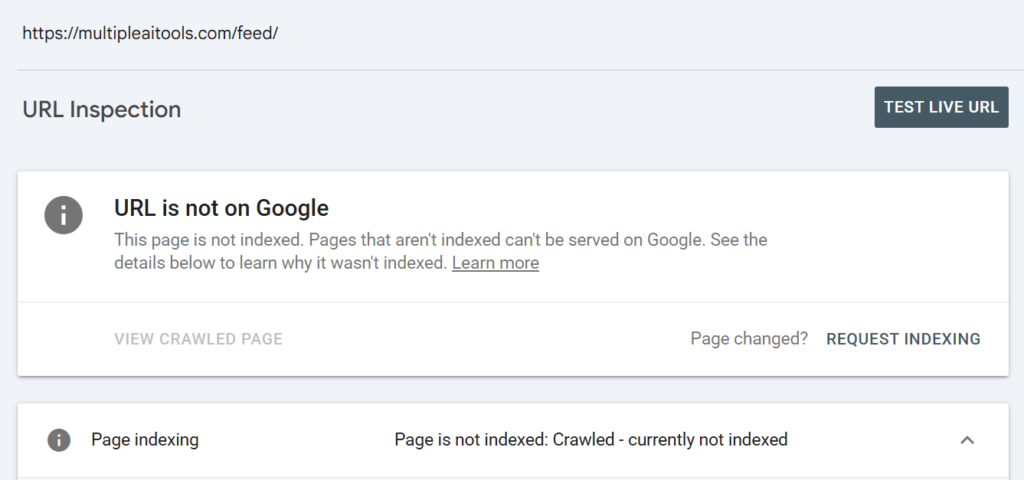
URL Inspection Tool showing “URL is not on Google” this confirms the page is crawled but not indexed.
This tells you the current indexing status of that specific page. Read the details carefully sometimes it gives you a hint about why the page is not indexed.
Step 2: Improve the Content
This is the most important step. Before requesting indexing, make sure the content is actually good enough to be indexed. This is exactly the kind of issue our SEO services team helps clients with 1identifying why pages are not ranking and fixing them properly.
Ask yourself:
- Is this page at least 800-1,000 words of real, useful content?
- Does it answer the search query better than the top 5 results on Google?
- Does it have original insights, examples, or personal experience?
- Is it fully edited, not raw AI output?
If the answer to any of these is “no” , fix the content first.
Step 3: Add Internal Links
Go to your existing published and indexed posts. Find 2-3 posts that are topically related to the unindexed page. Add a link from those posts pointing to your new page.
This signals to Google that this page is important and connected to the rest of your site.
Step 4: Check for Technical Issues
Make sure:
- The page does not have a noindex tag
- The page is not blocked in robots.txt
- The canonical tag is pointing to the correct URL (not some other page)
In WordPress, check your Yoast or RankMath settings for each post to confirm indexing is allowed.
Step 5: Request Indexing
Once you have improved the content and fixed technical issues, go back to the URL Inspection Tool and click “Request Indexing.”
The Request Indexing button in GSC URL Inspection Tool — click this only after you have made real improvements to the page.
Important: Do not click Request Indexing without making actual improvements first. If you request indexing on a low-quality page, Google will just crawl it again and leave it unindexed which can make the situation worse over time.
How Long Does It Take to Get Indexed After the Fix?
There is no exact timeline, but based on our experience:
- New pages on established sites: 3-7 days
- New pages on newer sites (under 6 months old): 2-4 weeks
- Pages that have been stuck for a long time: 4-8 weeks after improvements
The key factor is your website’s overall authority and how often Googlebot visits your site. Building quality backlinks to the specific page can speed up the process.
WordPress Users: Extra Things to Check
If you are running a WordPress website, here are a few additional things to check:
Check your Reading Settings: Go to WordPress Dashboard > Settings > Reading. Make sure “Discourage search engines from indexing this site” is NOT checked. This is a common mistake on new sites.
Check Yoast / RankMath per post: Open the specific post in the WordPress editor. In Yoast SEO, go to the Advanced tab and confirm that “Allow search engines to show this post in search results” is set to Yes. In RankMath, check the Advanced tab for any noindex setting.
Fix Schema Conflicts: If you have multiple SEO plugins active at the same time (e.g., both Yoast and RankMath), this can create schema conflicts that confuse Google. Use only one SEO plugin at a time.
How to Prevent This Issue in the Future
The best fix is prevention. Here is a simple checklist before publishing any new post:
- Content is at least 800 words of real, useful information
- Post has been edited not raw AI output
- At least 2 internal links added from existing indexed pages
- Meta title and meta description are filled in
- No noindex tag accidentally enabled
- Schema markup added (BlogPosting or Article)
- Sitemap is updated and submitted in GSC
Following this checklist before every publish will drastically reduce the chances of your pages landing in the “Crawled — currently not indexed” bucket.
Final Thoughts
“Crawled — currently not indexed” is not a penalty. It is Google telling you: “We visited your page but it is not valuable enough to show to our users yet.”
The fix is almost always content quality. Write better, add real value, link internally, and build authority over time. Once you do that, request indexing and wait.
If you are dealing with this issue on multiple pages at once, it is likely a site-wide quality signal. In that case, prioritize your most important pages first and work through them one by one.
At Easy Client Hub, we help businesses fix exactly these kinds of SEO issues. If you need a professional SEO audit or content strategy, contact us today. You can also explore more guides like this on our SEO blog.
Frequently Asked Questions
Q: Is “Crawled — currently not indexed” a penalty?
No, it is not a Google penalty. It simply means Google does not find enough value in the page to add it to the index right now.
Q: Can I force Google to index my page?
You cannot force indexing. You can request it via the URL Inspection Tool, but Google makes the final decision based on content quality and site authority.
Q: Why is my page crawled but not indexed even after requesting indexing?
This usually means the content quality is still not good enough. Improve the content first, then request indexing again.
Q: How many internal links do I need to get a page indexed?
There is no exact number, but 2-3 relevant internal links from already-indexed pages is a strong signal. More is better, as long as they are contextually relevant.
Q: Does this issue affect my whole website?
If many pages have this status at once, it can be a sign of a site-wide quality issue. Google may reduce its trust in your entire domain if too many low-quality pages exist.
Q: Can Google index a page automatically later?
Yes. Google may automatically index your page after it detects improvements like better content, stronger internal links, or higher site authority. However, indexing is never guaranteed.
About the Author
Aoon Muhammad is an SEO specialist and content strategist at Easy Client Hub. He creates practical guides on technical SEO, WordPress, AI search optimization, and content marketing based on real-world testing and hands-on experience.
Published by Easy Client Hub — Digital Marketing Agency helping businesses grow through SEO, content marketing, and web development.